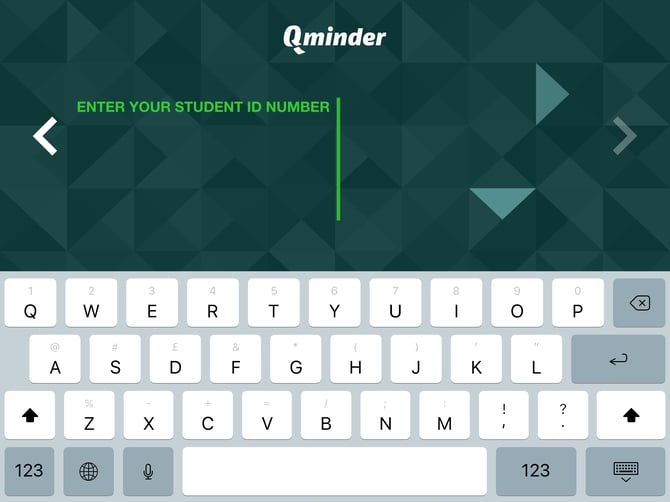
You can ask custom questions with the Qminder self-service sign-in iPad app. This way you can have your visitors enter the information your business requires already during registration.
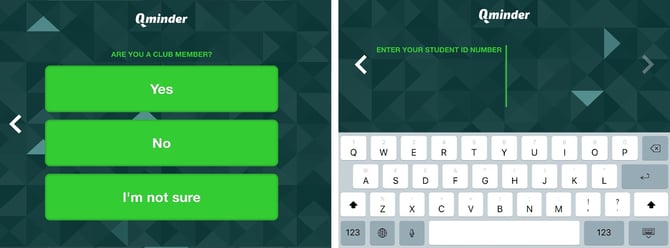
You can add custom questions to the iPad sign-in flow from the Qminder dashboard.
-
Click on the Locations tab (the second icon from the bottom on the sidebar).
-
Click on the location's name where the iPad is located.
-
Click on IPADS from the menu.
-
Click on the iPad you wish to edit.
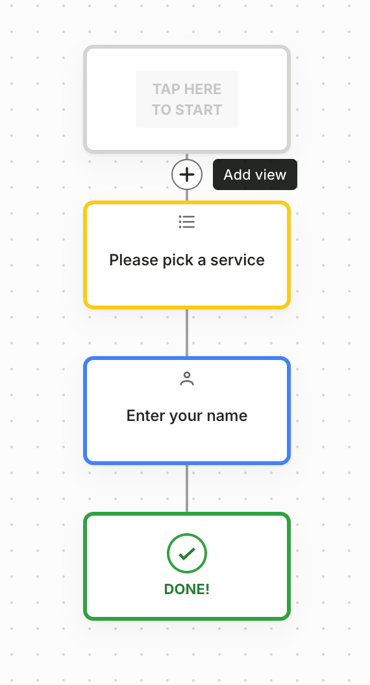
Click on the plus sign to add a new view.
Hover between two tiles (or under the last one) and click the + that appears to add a new view.
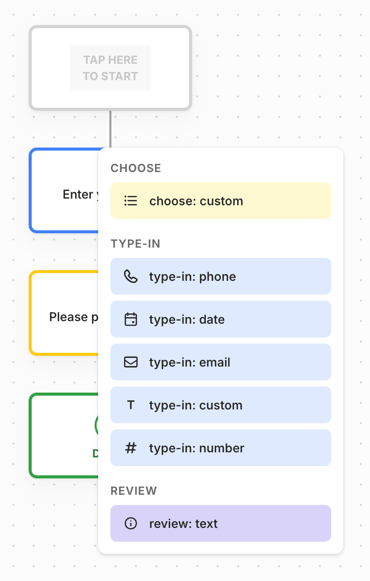
Choose the view type from the drop-down menu:
-
choose: custom - visitor selects custom information
-
type-in: custom - visitor enters custom information
CHOOSE: CUSTOM
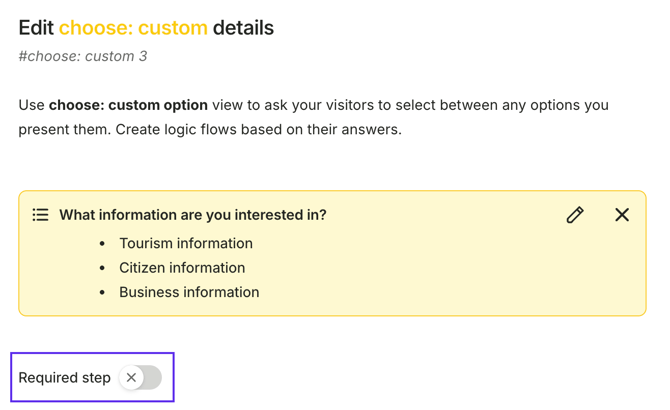
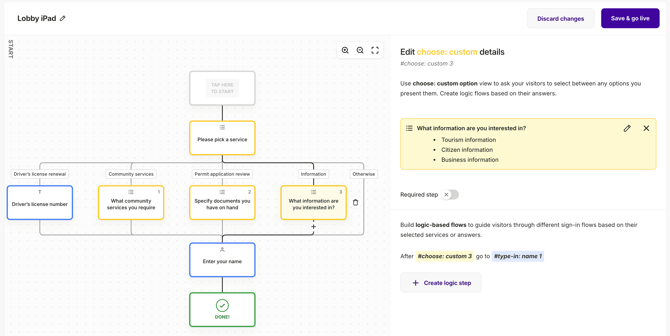
If you want the visitor to answer your custom question by selecting one of the pre-made answer choices, add a choose:custom view to the sign-in flow.
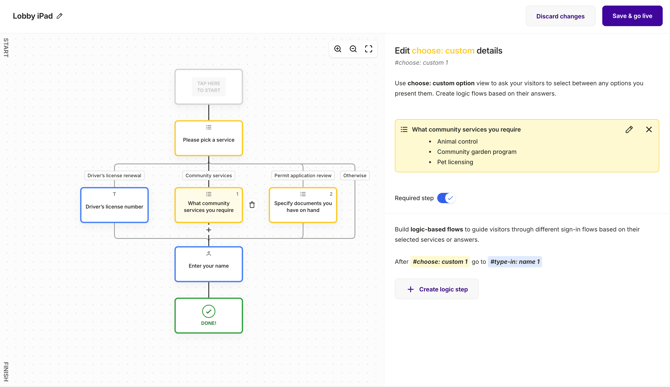
You can manage all of those options under Input Fields, a list option. See more at Create and manage Custom Input Fields
You can also create a new option directly from the iPad editor view by choosing "New List field" listed as the first option.
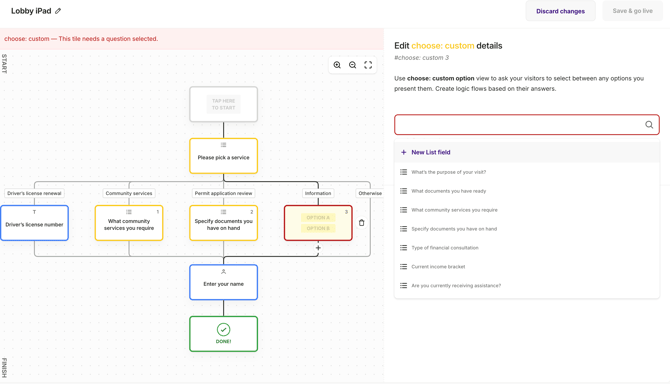
You will be taken over to the input field setting, and the flow is as follows:
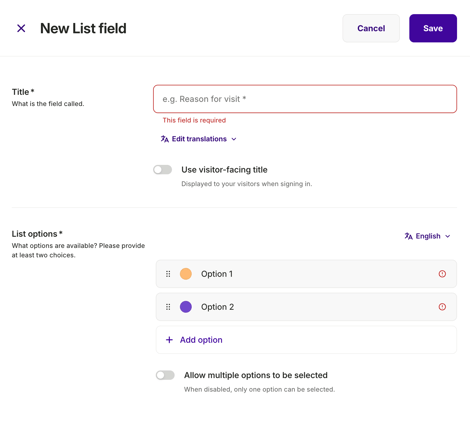
-
Write the question/text that you wish to display on the iPad
-
Write the answer choices for the question.
-
You can add more answer choices by clicking on the +ADD AN ANSWER button. You can have a maximum of 10 different choice options.
-
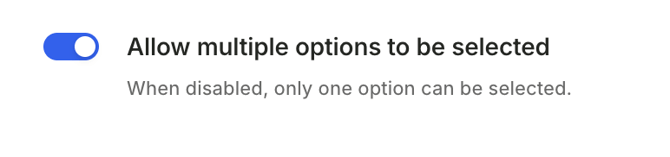
Turn this option on if you want the visitor to be able to select multiple answers.
-
Turn this option on if you want the visitor to be able to skip the question.
Once you're done with the changes, don't forget to click SAVE & GO LIVE on the top right corner of the page.
TYPE-IN: CUSTOM
If you want the visitor to answer your custom question by typing it in manually, add a type-in:custom view to the sign-in flow.
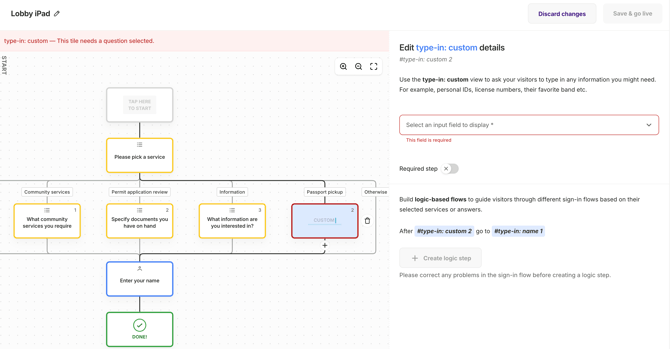
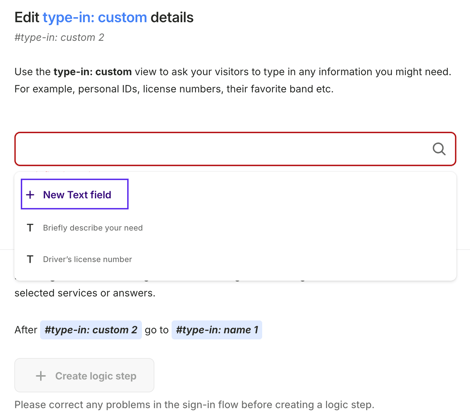
Once again, you can manage all of those options under Input Fields (see more at Create and manage Custom Input Fields) or you can also create a new option directly from the iPad editor view by choosing "New Text field" listed as the first option.
-
Write the question that you wish to display on the iPad
-
Turn the option "Required step" on if the visitor must answer before continuing (they won't be able to skip it).
Once you're done with the changes, don't forget to click SAVE & GO LIVE on the top right corner of the page.