
If you have subscribed to our Annual Premium Plan or Enterprise pricing, you can configure Data Retention settings in Qminder. This allows you to define how long a visitor's data will be retained in Qminder.
By default, Qminder will retain all visitor data for the lifetime of your Qminder subscription. If you’d like, you can adjust your retention settings to automatically delete personal data after a set amount of time.
Personal Data Retention
What you need to know
-
Deletion is permanent.
-
Deletions run four times a day, so making changes can result in data being deleted shortly after a policy has been set.
-
Retention settings will apply to visits that are in status Served, Removed, or No Show. Visits still in status Waiting and Called will not be deleted.
What will be deleted?
Qminder will delete the following data after the selected data retention period:
-
First name (will be changed to Redacted)
-
Last name
-
Email address
-
Phone number
-
All SMS messages (both incoming and outgoing)
-
All incoming SMS attachments
-
All labels
-
All additional fields which are based on Input Fields
-
Timeline
Qminder will not delete the fact of the visit, wait time, service time, service lines, or information of who served the visitor.
Data Analyst Retention
If your account has access to the Data Analyst feature, you can configure a separate retention policy for AI conversation data.
What Gets Deleted
When a conversation reaches the configured retention period:
- Conversations – All Data Analyst conversation history and messages
- Exported files – Any files generated and downloaded through Data Analyst
How Often Does Deletion Run?
The Data Analyst cleanup runs every hour, processing conversations and exports that have exceeded the retention period.
How to Configure Data Retention
Step 1: Access Data Retention Settings
- Click on your avatar in the bottom-left corner of the dashboard
- Select Organization Settings
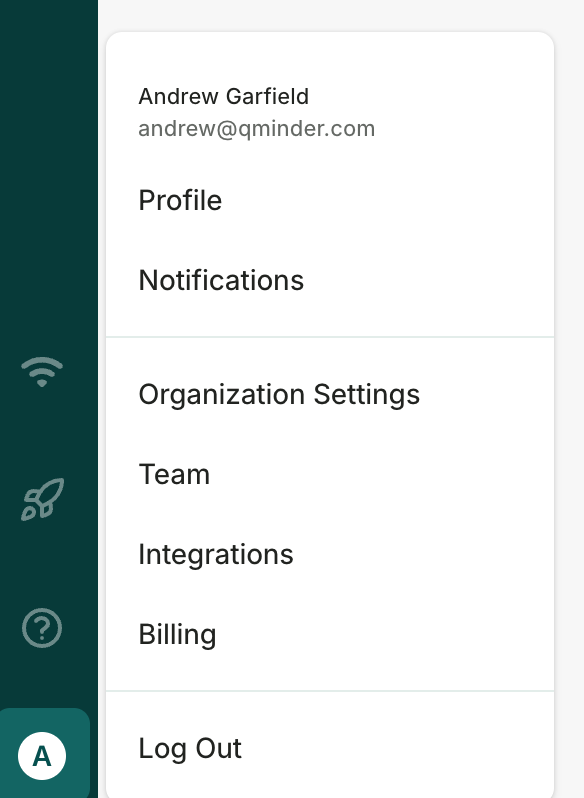
- Navigate to Data Retention
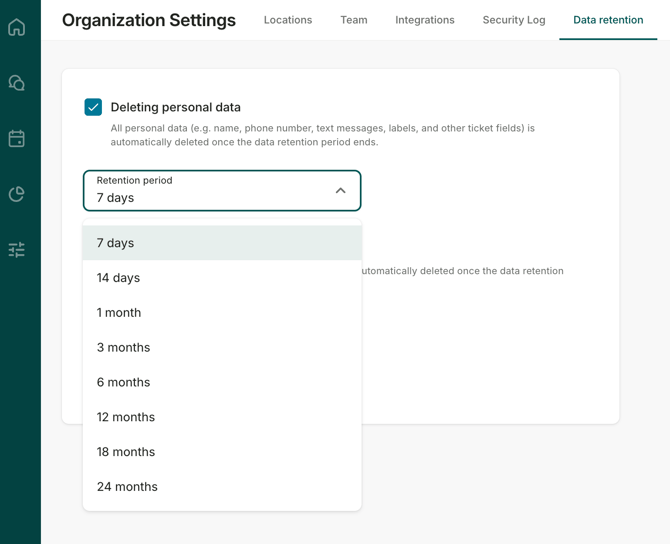
Step 2: Configure Personal Data Retention
- Check the box next to "Deleting personal data" to enable automatic deletion
- Select your preferred retention period from the dropdown menu
- Your settings are saved automatically
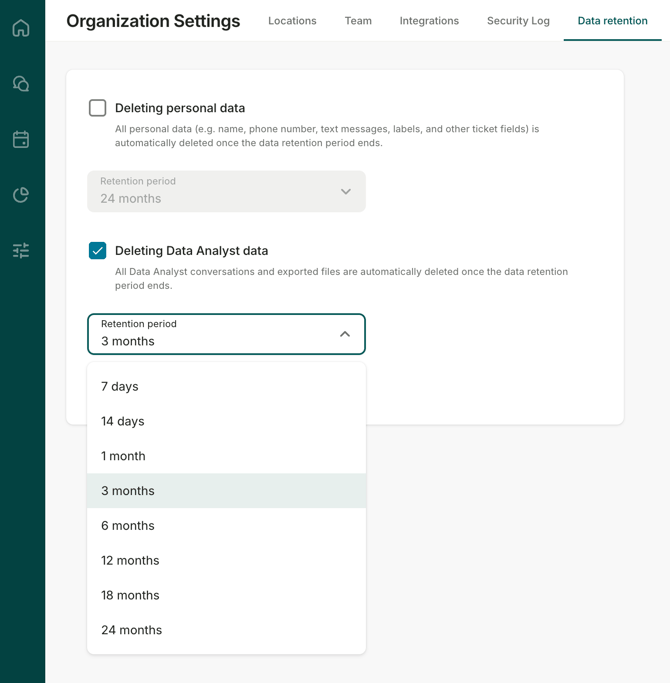
Step 3: Configure Data Analyst Retention (if available)
If your account has the Data Analyst feature enabled:
- Check the box next to "Deleting Data Analyst data" to enable automatic deletion
- Select your preferred retention period from the dropdown menu
- Your settings are saved automatically
Disabling Data Retention
To stop automatic deletion:
- Uncheck the box next to the retention policy you want to disable
- Your data will no longer be automatically deleted
Important Warnings
NB! Deletion is permanent. Once data is deleted through the retention policy, it cannot be recovered. Make sure you have exported any necessary data before enabling retention settings.
NB! Changes take effect quickly. Retention policies are applied within hours. If you reduce your retention period, data that now exceeds the new threshold will be deleted in the next cleanup cycle.
NB! Personal Data and Data Analyst retention are independent. Changing one policy does not affect the other. Configure each according to your organization's data governance requirements.
Frequently Asked Questions
Who can change data retention settings?
Only users with Owner or Administrator roles can access and modify data retention settings.
Can I set different retention periods for different locations?
No, data retention settings apply to your entire Qminder account across all locations.
What happens if I disable retention after enabling it?
When you disable a retention policy, automatic deletion stops immediately. Any data that hasn't been deleted yet will be preserved going forward.
Does enabling retention delete my historical data?
Yes. When you enable retention, any existing data older than your selected retention period will be deleted in the next cleanup cycle.
Is there an audit trail for retention settings?
Yes. All changes to data retention settings are logged in your account's Security Log, including who made the change and when.
I don't see the Data Analyst retention option. Why?
The Data Analyst retention settings are only visible if your account has the Data Analyst feature enabled. Contact your account manager to learn more about this feature.