
You can use Microsoft Entra ID for Single sign-on, and your users will be able to access Qminder Dashboard without needing to remember another password.
Installation
Microsoft Entra ID
Log in to one of the following:
- Microsoft Entra admin center or
-
Microsoft Azure and search for resource Microsoft Entra ID
- Navigate to Enterprise apps → New application
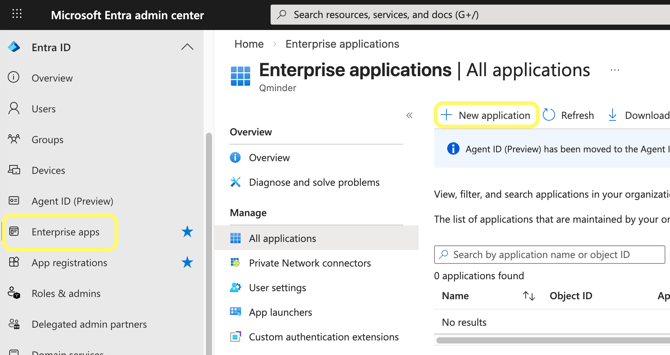
- Search for
Qminderand select the result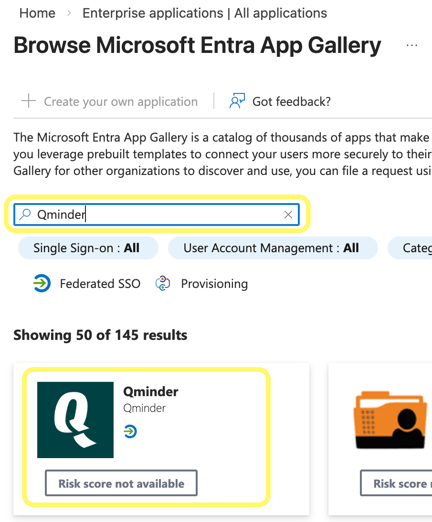
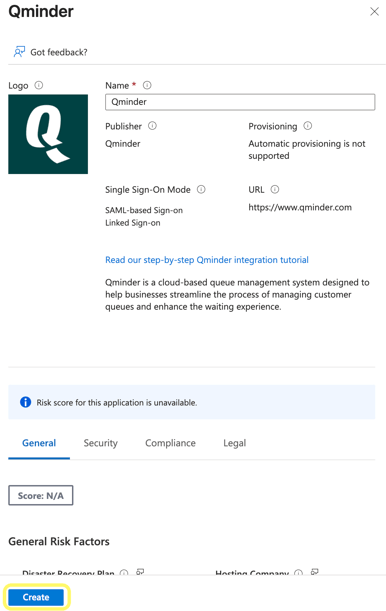
- Click on "Create"
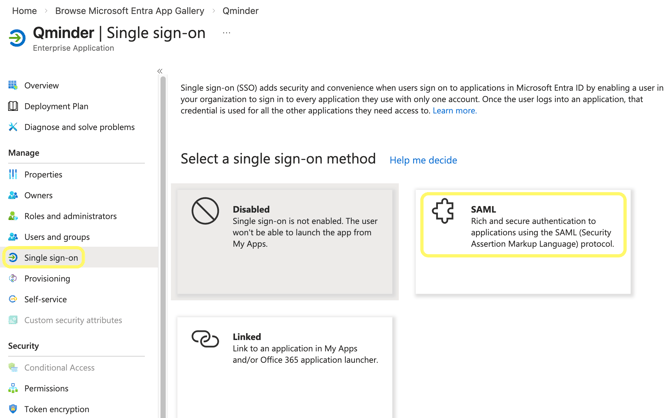
- From left navigation choose Single sign-on and then select SAML as the method
- There should be a dialog prompting to save required SAML settings. Click Yes.
Or alternatively, Edit Basic SAML Configuration manually with the following values:
- Identifier (Entity ID):
https://dashboard.qminder.com/saml/metadata - Reply URL:
https://dashboard.qminder.com/saml/SSO - Sign on URL: Leave empty!
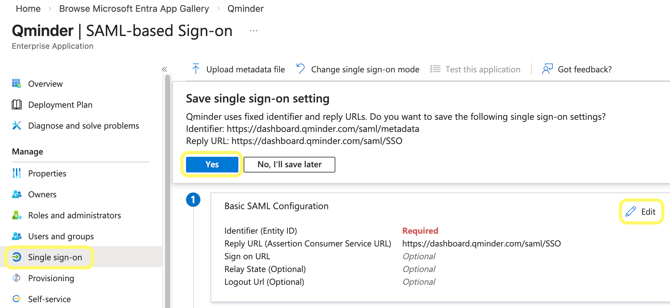
- Identifier (Entity ID):
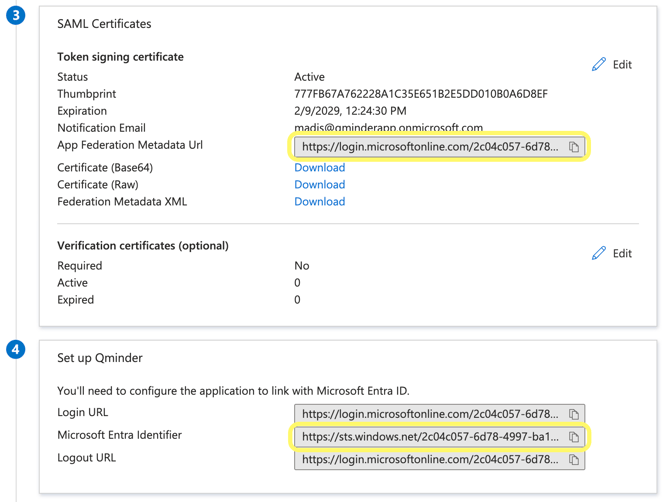
- Copy the App Federation Metadata Url and Microsoft Entra Identifier
- Go to Users and groups and assign users (including yourself) who can access this application.
- Go to Properties and make sure Visible to users? is enabled.
Qminder Dashboard
- In Qminder, navigate to bottom-left menu → Integrations and choose Install under Microsoft Entra ID
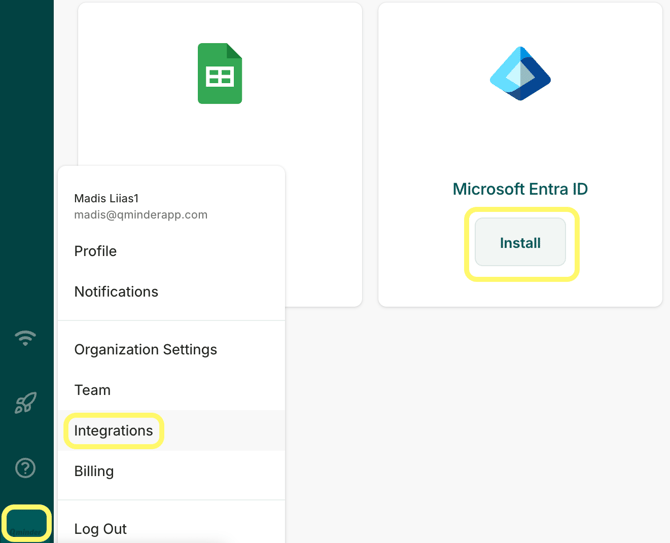
- Click on Install button in the top right

- Paste Microsoft Entra Identifier and App Federation Metadata Url that you previously copied from Microsoft Entra.
Don't forget to press Save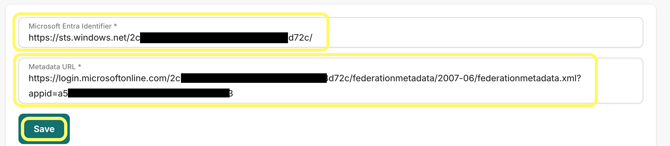
Testing logging in from Microsoft Entra ID to Qminder
Now you can initiate login from Microsoft Entra ID. This is also known as IdP-initiated SAML login, where IdP stands for Identity Provider, which in this case is Microsoft Entra ID.
- Log out from https://dashboard.qminder.com/
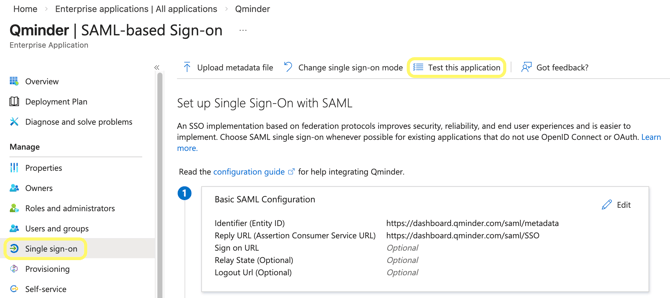
- In Microsoft Entra, go back to Single sign-on of the Qminder app and from there choose Test this application
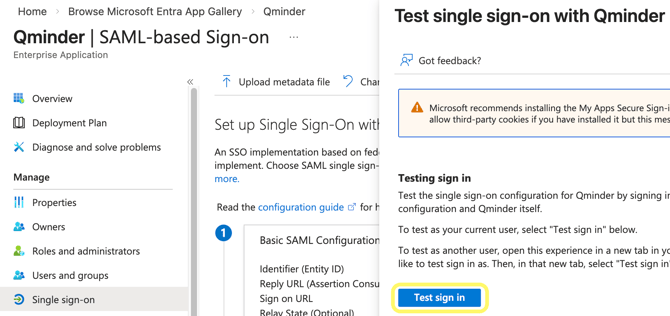
- And then press Test sign in. If Qminder opens and is logged in, then it works!
- If you want another user to be able to test logging in, they can do so by visiting https://myapps.microsoft.com/ and choosing Qminder.
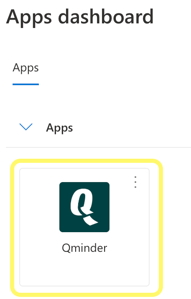
If they don't see Qminder app there, go to Properties and make sure Visible to users? is enabled.
Logging in from Qminder login screen using Microsoft Entra ID
If you have verified that logging in worked in one of the previous steps, then you can contact us to enable logging in from the Qminder login screen using Microsoft Entra ID. This is also known as SP-initiated SAML login, where SP stands for Service Provider, which in this case is Qminder.
Once we enable it, the following will happen:
- Anyone entering a username with @yourcorp.com email address will not be able to enter a password anymore, and will instead see a passwordless login screen.
- Users who are not registered to Qminder yet, will automatically be created a new Qminder user. This is also known as SAML JIT (Just-in-time).
New users will automatically have clerk permission in every location. The account owner or one of the account administrators needs to set more specific permissions directly inside Qminder.
Configuring more than one Qminder account
In some cases same Entra tenant might be used for more than one Qminder account.
In that case add the second Qminder application with:
-
Identifier (Entity ID): https://dashboard.qminder.com/saml2/service-provider-metadata/<registrationId> (instead of using https://dashboard.qminder.com/saml/metadata)
<registrationId> must be replaced with base64(issuer id)
where issuer id is https://sts.windows.net/<tenantId>/<applicationId>
For base64 encoding enable url-safe version of it, e.g by using online tool https://www.base64encode.org -
Go to SAML -> Attributes and Claims -> Advanced SAML claims options -> Edit and add a checkmark to Append application ID to issuer and hit Save.
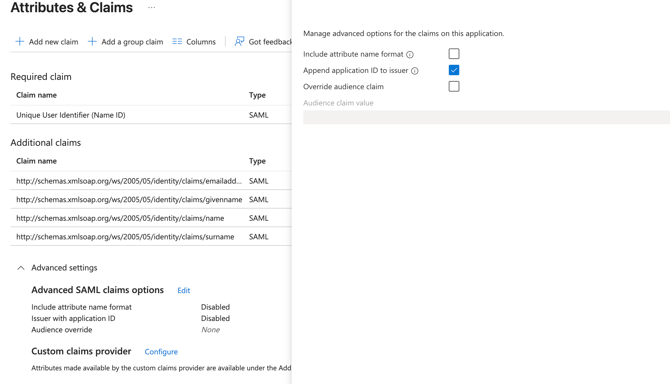
Then in Qminder register Entra integration with:
-
Microsoft Entra Identifier: https://sts.windows.net/<tenantId>/<applicationId>
In Entra this is Microsoft Entra Identifier and appending application id without a trailing slash. You can find that application id from the metadata URL after appId=... -
Metadata URL: App Federation Metadata Url in Entra
Notes
- No SCIM (System for Cross-domain Identity Management) support.
This means that even though new users are automatically created through SAML JIT, then removing users from Qminder and assigning user roles has to be done through Qminder.