
When 2FA is enabled for your organization, every team member must verify their identity with a 6-digit code sent to their email address each time they sign in. This applies to all locations under your organization.
Who can enable 2FA?
Only Admins and Owners can turn 2FA on or off. The setting is found in Organization Settings > Security.
How to enable 2FA
- Go to Organization Settings from the main menu.
- Click the Security tab.
- Toggle Two-factor authentication to on.
.png?width=670&height=371&name=dashboard.local.qminder.com_security_%20(1).png)
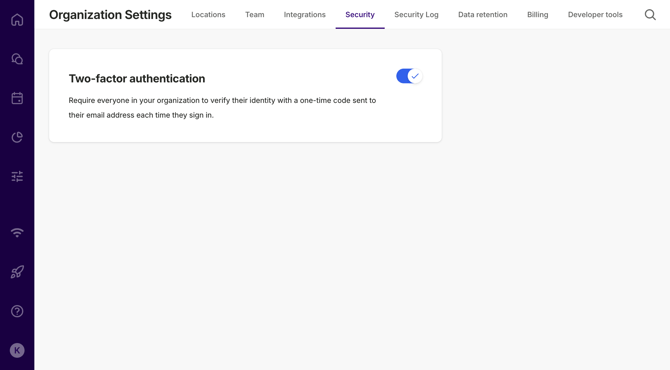
Once enabled, 2FA applies to all team members in your organization immediately; no further configuration is needed per location.
⚠️ Note: 2FA applies only to accounts that use a password to sign in.
If your organization uses SSO, team members can continue to sign in with SSO as usual; 2FA will not apply to them.
What happens at sign-in
When 2FA is active, the sign-in flow works as follows:
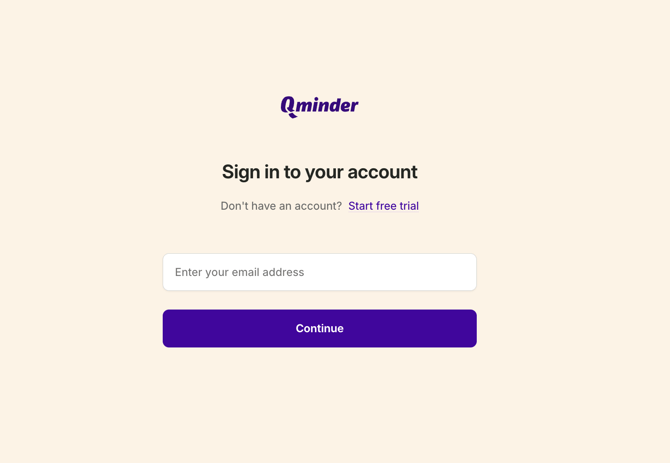
- The team member enters their email address and password as usual.
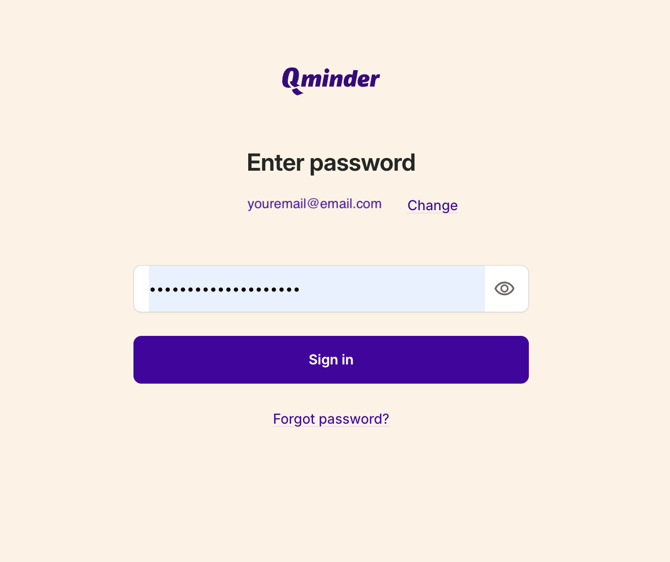
- Qminder sends a 6-digit code to their email address.
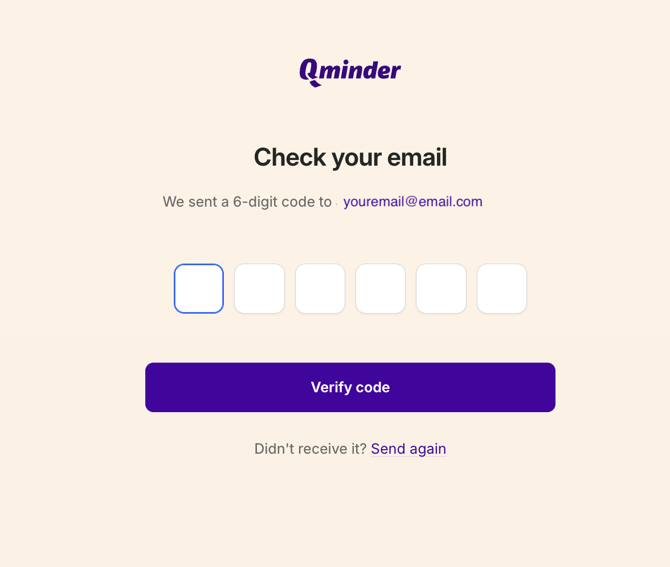
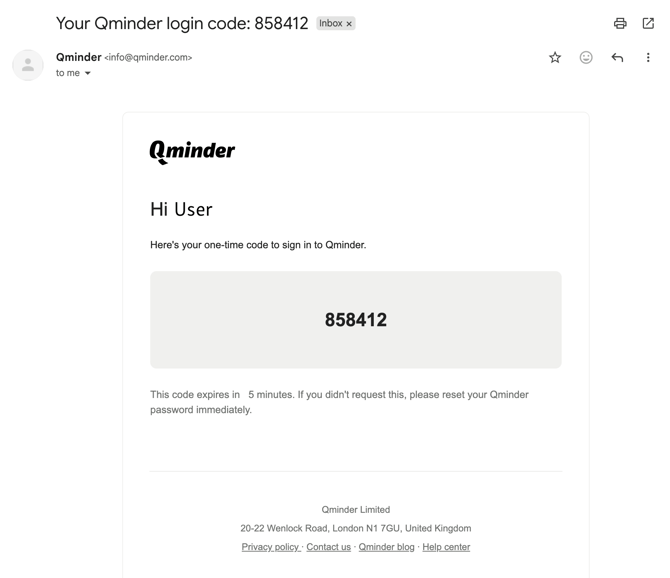
- They enter the code on the Check your email screen and click Verify code.
- Once verified, they're taken to the dashboard.
The code expires 5 minutes after it's generated, or as soon as it's successfully used; whichever comes first.
Requesting a new code
If a team member doesn't receive the code or it expires, they can click Send again on the verification screen.
A few things to keep in mind:
- There is a 30-second wait between each new code request.
- A new code can be requested up to 5 times within a 10-minute window. Successfully used codes do not count toward this limit.
- After 5 consecutive failed verification attempts, all active codes are marked as expired. The team member will need to request a new code to try again.
Frequently asked questions
Does 2FA apply to SSO users? No. Team members who sign in via SSO are not affected by 2FA. The requirement only applies to password-based logins.
Does 2FA apply per location or for the whole organization? It applies to the entire organization. When turned on, all team members across all locations must verify their identity at sign-in.
What if a team member doesn't receive the code? They can click Send again on the verification screen. Make sure the email address on their Qminder account is correct and check the spam folder, if needed.