
An Attachment field collects files as part of a visit: a permit application, proof of address, a signed form, or a photo of what needs fixing.
Your team can attach files to any ticket. You can also let visitors upload files themselves when they join the waitlist or book an appointment. The file stays with the ticket, so whoever serves the visitor has it in front of them.
Create an Attachment field
- Go to Location Settings → Input Fields & Labels.
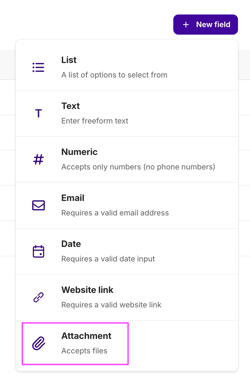
- Open the Input fields tab and click New field.
- Choose Attachment.
- Give the field a Title, for example Documents.
- Choose your settings below and click Save.
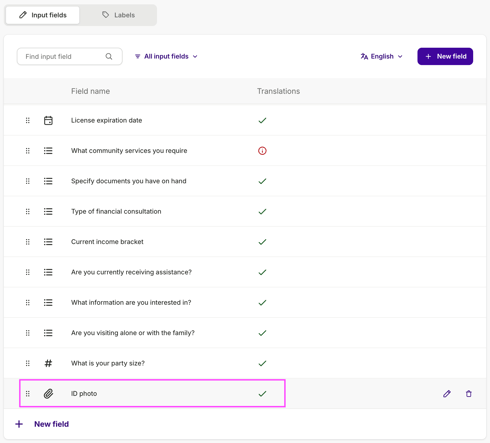
The field appears in your list with a paperclip icon. Drag the handle on the left to change where it sits in the form.
Settings
Title

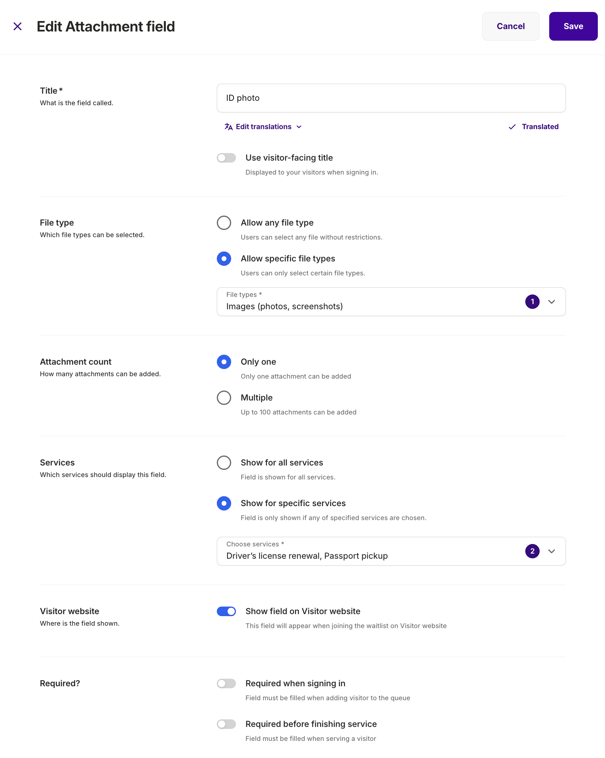
What your team sees. To show visitors something different, turn on Use visitor-facing title and enter their wording.
Click Edit translations to translate the title into your other languages. Error messages and the upload area are translated for you.
File type
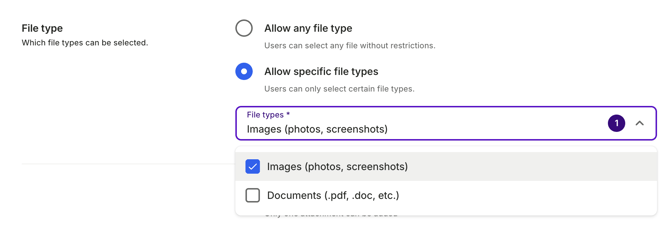
Choose Allow any file type, or Allow specific file types and pick Images, Documents, or both.
Images covers .jpg, .jpeg, .png, .apng, .bmp, .gif, .webp, .avif, .heic, .heif, .hif and .jxl.
Documents covers PDFs (.pdf), text files (.txt, .md, .csv, .tsv), Microsoft Office (.doc, .docx, .xls, .xlsx, .ppt, .pptx, .pps, .ppsx), OpenDocument (.odt, .ods, .odp) and Apple iWork (.pages, .numbers, .key).
This shapes what people can upload:
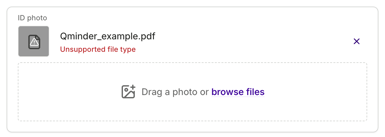
- Only the file types you allow can be selected. Anything else is refused as an unsupported file type.
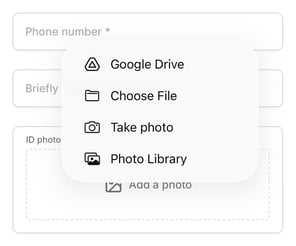
- On a phone, an Images field offers the camera for photos. Allowing any file type offers photo or video.
Attachment count
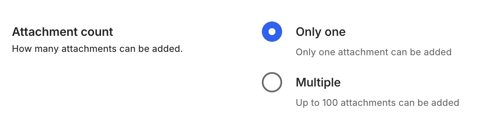
Choose Only one or Multiple, up to 100 files.
This changes what happens when someone uploads a second file:
- Only one - the new file replaces the one already there. This is how you swap a file for a newer version.
- Multiple - files are added alongside each other. Photos taken on a phone all arrive named image.jpg, so Qminder numbers them automatically as image, image2, image3 and nothing is overwritten.
Services
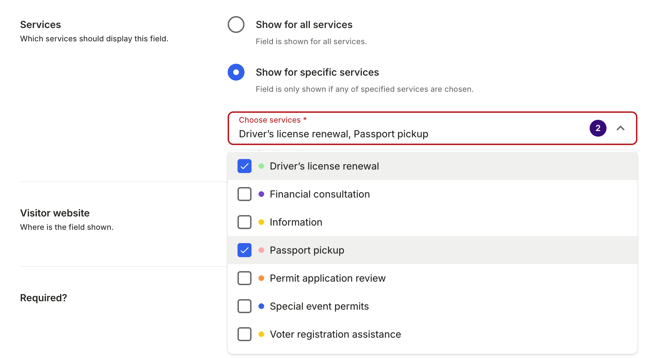
Show the field for all services, or only the ones that need it. The field appears only when one of those services is selected, for your team and for visitors alike.
A visitor collecting a licence doesn't see an upload box, while a visitor applying for one does.
Visitor website

Turn on Show field on Visitor website to let visitors upload files themselves, when joining the waitlist and when booking an appointment.
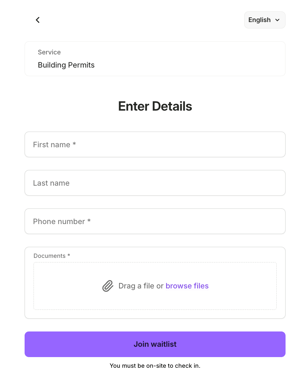
Leave it off and the field appears only in your dashboard, for your team to fill in.
Required
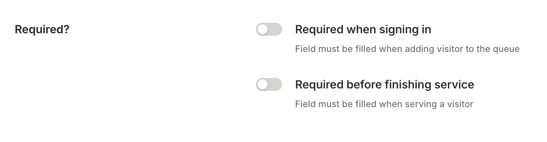
Choose Required when signing in, Required before finishing service, or both.
- When signing in - a file has to be attached before the visitor joins the queue.
- Before finishing service - a file has to be attached before your team can complete the visit. Use this when the document is produced during the visit rather than brought to it.
On a required field, the last remaining file can't be removed. To swap it, upload the replacement first.
Attaching files in your dashboard
Your team can always attach files, whether or not the field is on your Visitor website.
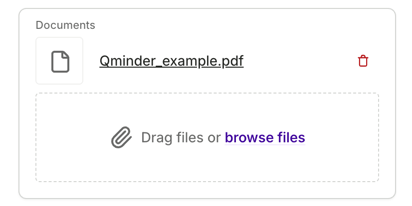
The field appears in the Add visitor panel and on the ticket. Drag files in, or click browse files.
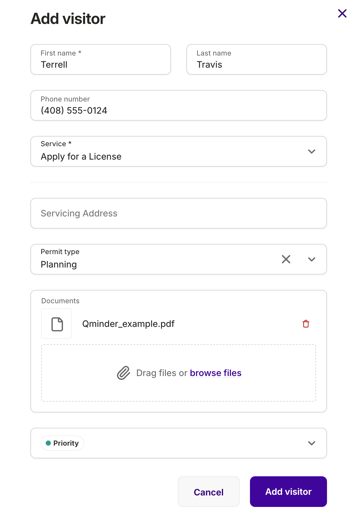
- Uploads run in the background. Start one and carry on working. A status bar at the bottom left tracks everything in progress across your tickets, and you can cancel an upload before it finishes.


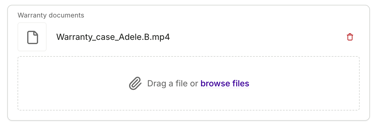
- Click a filename to download it. Images also show a thumbnail in the list, so you can spot the right one at a glance.
- Remove a file with the trash icon.
- Changes are recorded in the ticket's activity log, with the filenames and who made the change.
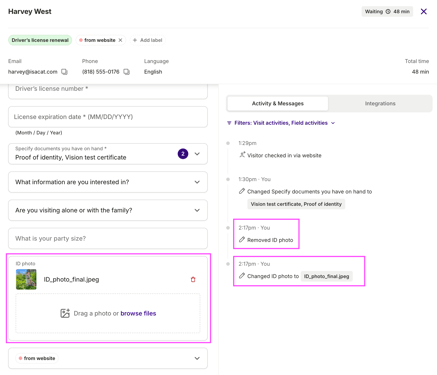
Everyone on your team can add, open and remove attachments, including files a visitor uploaded.
Letting visitors upload files
This section applies when the Show field on Visitor website is turned on for the field.
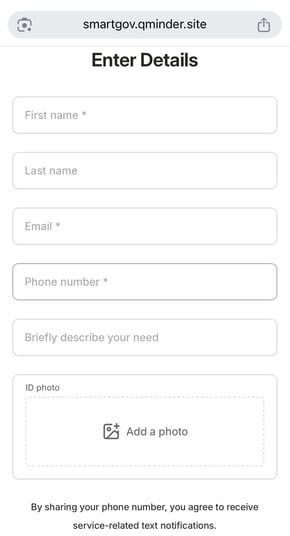
Visitors see the field in the details step, whether they're joining the waitlist or booking an appointment. They can drag a file in, browse for one, or use their phone's camera if the field allows images.
The upload has to finish before the visitor joins the waitlist or their appointment is created, so a large file means a short wait. If the field is required, they can't continue without it.
Good to know
- Size and number. Each file can be up to 100 MB, and you can add up to 300 MB at a time. A field holds up to 100 files.
- If an upload fails. A file of the wrong type is refused straight away. A file that's too large fails with The upload is too large. If you upload several at once and one is refused, the rest still attach.
- In your records. Visitor History shows the filename, or the number of files when there are several, and you can sort by that number. Open the ticket to download a file. Excel exports include every filename.

- Not on the iPad. Attachment fields work in your dashboard, on the Visitor website, and in Appointments. They aren't available on the iPad sign-in kiosk.
Data retention. Your location's data retention settings cover attachments, the same as your other custom input field values. See more info Configure Data Retention settings.
Edge cases worth knowing
|
Situation
|
What happens
|
|---|---|
|
Delete the input field itself, with files already attached
|
The field shows as disabled on existing tickets. No new uploads, but existing files stay downloadable.
|
|
Change any file type → Images with a PDF already attached
|
The PDF stays, the field still saves, and only images can be added from then on. The backend doesn't retroactively validate.
|
|
Change Multiple → Only one with two files attached
|
Removing one file fails because two attachments can't be saved on a single-file field. You have to get down to one, or upload a replacement that clears the rest. Genuinely confusing, worth documenting.
|