
Service Analyst is Qminder's AI-powered assistant that helps you understand your queue management data through natural conversation. Ask questions in plain language and get insights about visitor volumes, wait times, service performance, and more.
About Qminder Service Analyst
Qminder Service Analyst helps you move beyond viewing service data to truly understanding it.
Built on top of Qminder’s Service Intelligence, Service Analyst connects performance trends, historical data, and operational signals across visits, teams, and locations. Instead of adding more dashboards or reports, it focuses on interpretation, like surfacing patterns, inconsistencies, and changes that are easy to miss when data is viewed in isolation. By framing insights around real service questions, Service Analyst helps you understand how decisions, behaviors, and outcomes relate across your service operation.
Why use Service Analyst?
Seeing service data is only the first step. Improving service requires knowing what matters, why it matters, and where to act next.
Service Analyst helps you:
-
Interpret service performance, not just track it
Understand what patterns matter across teams, locations, and time without manual analysis.
-
Spot gaps and inconsistencies early
Identify shifts, blind spots, and variability that don’t stand out in standard reports.
-
Focus attention where it counts
Cut through noise and highlight the signals that deserve action right now.
-
Make confident, informed service decisions
Move from observing service performance to understanding it, and from understanding to deliberate improvement.
What can Service Analyst do?
Service Analyst can help you:
- Analyze visitor volumes.
See how many visitors you served over specific time periods - Compare performance.
Compare different services, locations, or time periods side by side - Track wait times.
Understand how long visitors waited for service - Measure service times.
See how long it takes to serve visitors - Identify trends.
Spot patterns in your data over days, weeks, or months - Generate visual reports.
Get charts and tables that summarize your data - Export your findings.
Download reports as Excel spreadsheets or PDF documents
1.Getting started
How to access Service Analyst
- Log in to your Qminder Dashboard
- Navigate to Data Insights
- Click Service Analyst in the top navigation menu
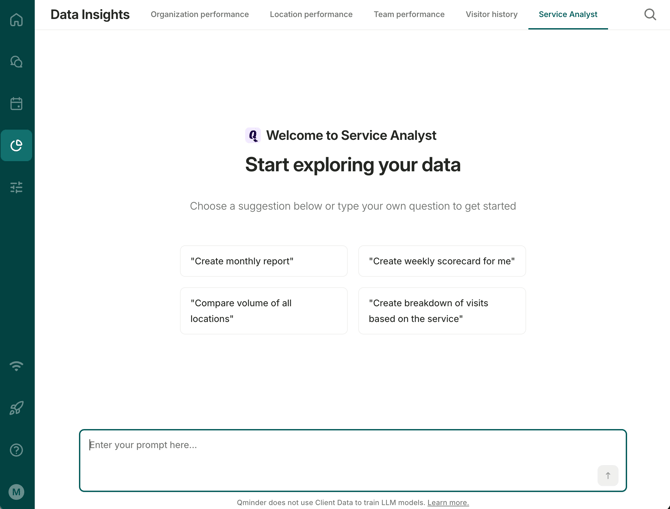
- You'll see a chat interface where you can start asking questions
Quick-start suggestions
When you open a new conversation, Service Analyst offers suggestion chips to help you get started:
- Create monthly report — generate a summary of last month's performance
- Create weekly scorecard for me — get a quick overview of the past week
- Compare volume of all locations — see how your locations stack up
- Create breakdown of visits based on the service — understand visit distribution
Click any suggestion to start a conversation instantly, or type your own question in the text field.
2. Asking questions
Type your question in the text field at the bottom of the screen and press Enter or click the send button. You can ask questions in plain, everyday language.
Example questions to get started
Visitor volumes
- "How many visitors did we serve last week?"
- "What was our busiest day this month?"
- "Compare visitor volumes between Monday and Friday"
Wait times
- "What was the average wait time yesterday?"
- "Show me wait times for each service last week"
- "Which day had the longest wait times this month?"
Service times
- "How long does it take to serve visitors on average?"
- "Compare service times between our services"
- "What was our fastest service time last week?"
Team performance
- "How many visitors did each clerk serve last week?"
- "Which team member has the shortest average service time?"
- "Show me clerk performance metrics for Location A this month"
- "Compare the no-show rates across clerks"
Labels and input fields
- "Break down visits by label for last month"
- "Which labels are used most frequently?"
- "Show me a breakdown of visits by the Reason for Visit input field"
- "What are the most common values for the Department field?"
Sentiment analysis
- "What is the sentiment trend for visitor messages this month?"
- "How does message sentiment compare across locations?"
Comparisons
- "Compare this week to last week"
- "Which service has the most visitors?"
- "How does Monday compare to the rest of the week?"
Trends
- "Show me the trend for visitor volumes this month"
- "Are wait times getting better or worse?"
Exports
- "Create an Excel report of this data"
- "Export last week's statistics as a PDF"
- "Give me a spreadsheet with visitor volumes by day"
💡 Tips for better results
- Be specific with time periods. "last week" or "January 2026" works better than "recently"
- Name your services or locations. If you want data for a specific service, include its name.
- Ask follow-up questions. Service Analyst remembers your conversation, so you can ask "break that down by day" or "break that down by service".
- Request specific formats — ask for charts, tables, or exports when you want a particular output
3. Understanding responses
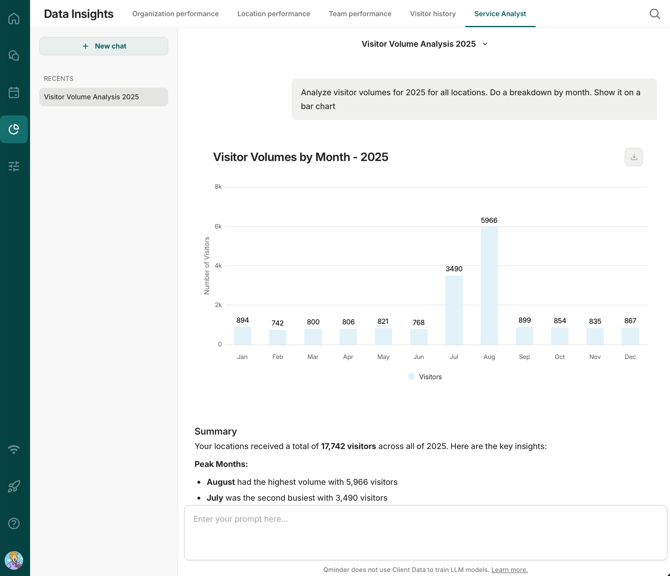
Service Analyst responds with a combination of text explanations, numbers, charts, and tables, depending on what makes sense for your question.
Charts
Service Analyst can create different types of charts to visualize your data:
- Bar charts — Great for comparing categories (e.g., visitor counts by service)
- Line charts — Perfect for showing trends over time (e.g., daily visitor volumes)
- Pie charts — Useful for showing proportions (e.g., percentage of visitors per service)
Tables
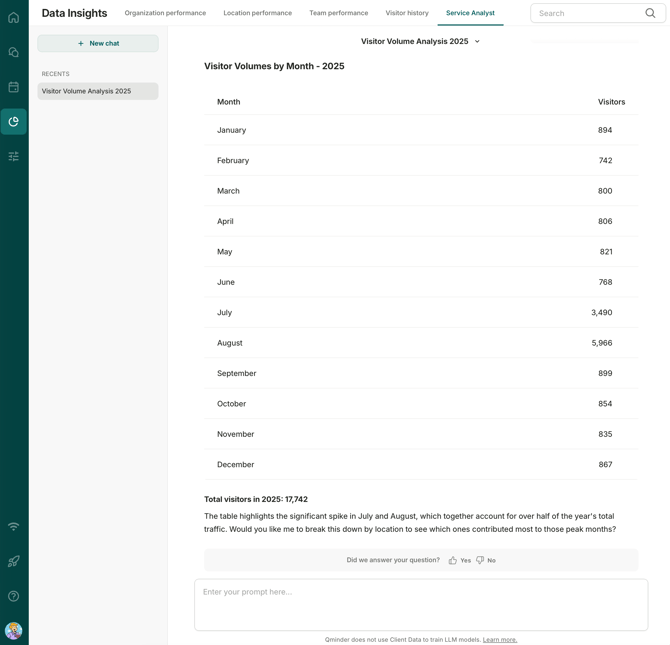
For detailed data, Service Analyst presents information in tables. Tables are useful when you need exact numbers or want to see multiple metrics at once.
Text explanations
Along with every chart or table, Service Analyst provides a plain-language explanation highlighting key takeaways, notable patterns, and potential areas of attention.
4. Exporting reports
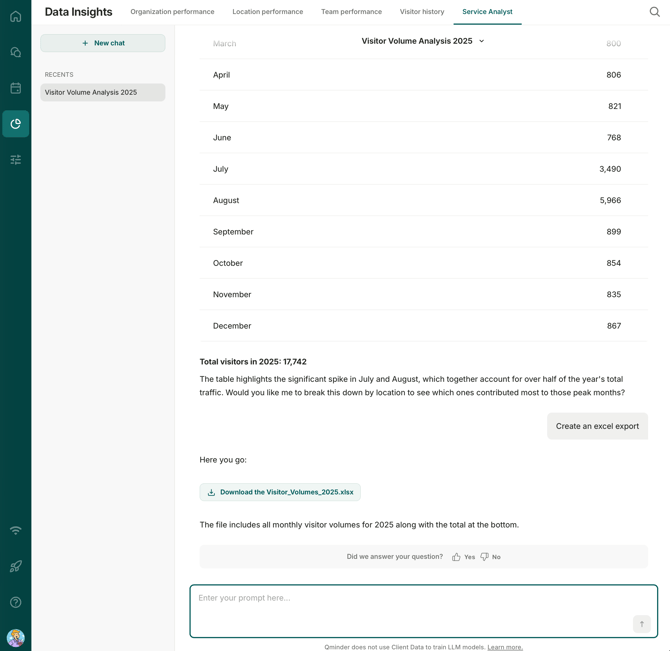
You can ask Service Analyst to create downloadable reports to share with your team or keep for your records.
How to export
Simply ask Service Analyst to create a report in the format you need:
- "Create an Excel report of last week's visitor volumes"
- "Export this data as a PDF"
- "Give me a spreadsheet with wait times by service"
Service Analyst will generate the report and respond with a download button. Click the button to download the file to your computer.
Export formats
- Excel (.xlsx) — Opens in spreadsheet applications; useful if you want to do further analysis
- PDF — Ready to share or print; includes charts and tables formatted for easy reading
What gets exported
- Charts are included as images
- Tables include all the data shown
- The export captures the specific analysis you requested
5. Managing conversations
Service Analyst saves your conversations so you can continue where you left off or revisit previous analyses.
Conversation sidebar
The left sidebar shows all your previous conversations, organized into two sections:
- Pinned — conversations you have pinned to the top for quick access
- Recents — your recent conversations in chronological order
Click any conversation to reopen it and see the full message history.
Pinning conversations
Pin important conversations to keep them at the top of your sidebar:
- Hover over a conversation in the sidebar and click the three-dot menu.
- Select Pin.
To unpin, open the same menu and select Unpin. You can also pin or unpin from within a conversation by clicking the conversation title and selecting the pin option from the dropdown.
Conversation history
Service Analyst remembers what you've discussed within a conversation. This means you can:
- Ask follow-up questions without repeating context
- Build on previous analyses ("Now show me that for last month instead")
- Refine your requests ("Actually, break that down by service")
Starting fresh
To start a new conversation:
- Click New Chat at the top of the chat
- Your previous conversation is saved and you begin with a clean slate
Response status
While Service Analyst is working on your question, you'll see a status indicator. Complex questions may take a moment longer to process.
6. Data and privacy
- Service Analyst only accesses data from your Qminder account
- Conversations and exported files are stored securely and subject to your account's data retention settings.
- Qminder does not use Client Data to train LLM models.
- All Service Analyst activity is recorded in your account's Security Log for audit purposes.
For information about configuring data retention settings, see Configure Data Retention Settings.
7. Frequently Asked Questions
Q: What time periods can I analyze?
A: You can analyze any data available in your Qminder account. Ask about specific dates, weeks, months, or custom ranges.
Q: Can I analyze data for specific services or locations?
A: Yes. Include the service or location name in your question, like "How many visitors did the Support service serve last week?"
Q: Can I share my analysis with others?
A: Yes. Ask Service Analyst to create an Excel or PDF report, then download and share the file with your team.
Q: Does Service Analyst work with real-time data?
A: Service Analyst analyzes historical data from your account. For real-time queue monitoring, use the Service View or Dashboard.