
Visitors can schedule appointments through the Visitor website at any time — even outside of your location’s opening hours.
This makes the booking flow more flexible than the “Join waitlist” (remote sign-in) option, which is only available during open hours.
📖 Want to offer remote sign-in too? Learn more: Virtual Queuing with Visitor website
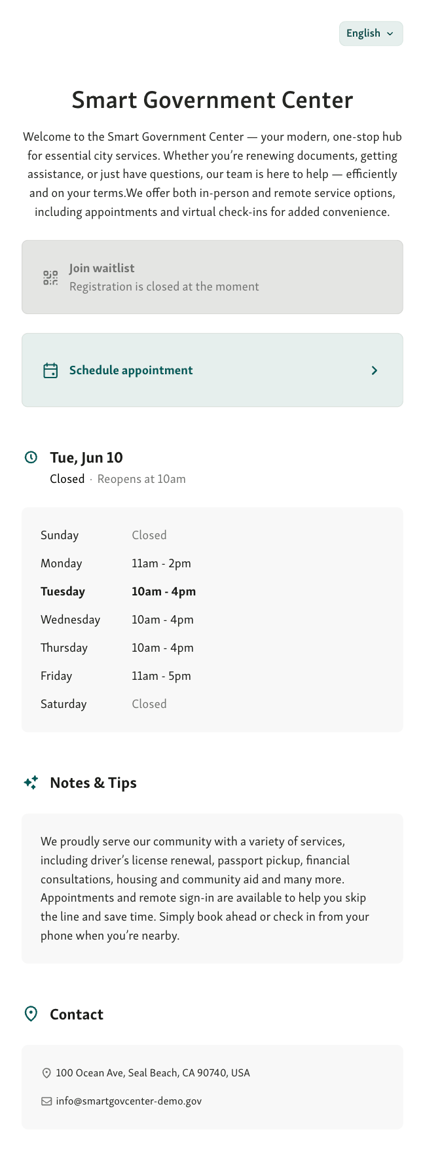
The appointment booking flow
Here’s how the process looks for visitors:
1. Select Schedule appointment
From the main Visitor website page, visitors click the Schedule appointment button.
At any point during the booking process, they can also choose their preferred language using the language selector in the top-right corner. 📖 Learn more: Multilingual support for appointments
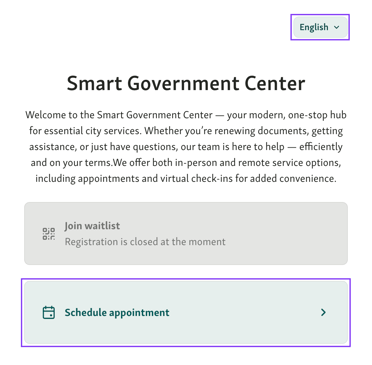
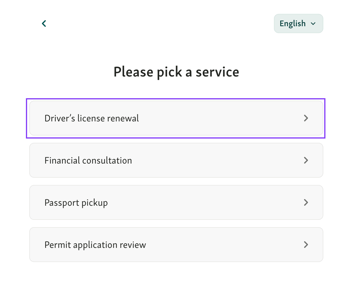
2. Pick a service
Visitors see a list of services available for booking. These are the same services your team enabled in the Appointments settings.
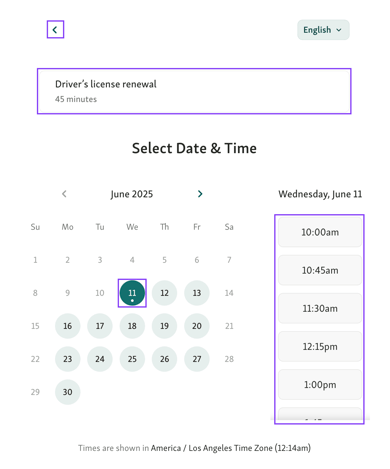
3. Select date & time
Next, the visitor chooses when they want to come in:
-
The calendar view shows available days.
-
The sidebar shows available times for the selected day.
-
The service name and duration are shown at the top of the page.
If needed, the visitor can still go back to the Service step before proceding.
4. Enter details
On the final screen, the visitor is asked to fill in their appointment details. These may include:
-
First and last name (required)
-
Phone number or email
-
Reason for visit or other custom fields
The exact fields shown are defined by your team under Input Fields & Labels, and can vary by service.
If needed, the visitor can still go back to the Date & Time step before submitting.
Once all required details are entered, they can confirm the booking by clicking Schedule appointment.
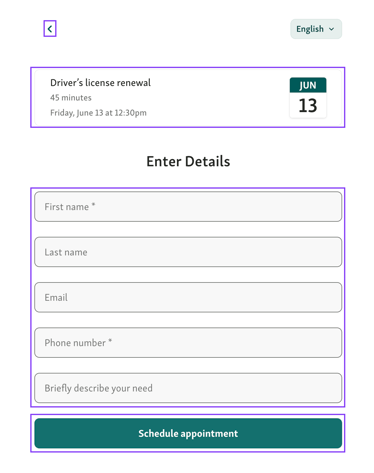
Example of the filled out Appointment details page

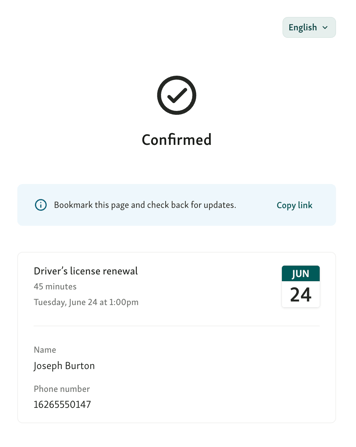
5. See the confirmation page
After booking, visitors land on a confirmation page. This serves as their appointment “ticket,” and includes:
-
Service name
-
Date & time
-
Visitor info (name, phone)
-
A dynamic status that updates as their visit progresses
💡 Visitors can bookmark this screen to return later for updates on their appointment status
Self-check-in for Appointments
When self-check-in is enabled, visitors will see an “I have arrived” button on their confirmation page:

📖 Learn more about the visitor flow in our article: Self-check-in for Appointments
📖 Learn how to set it up in our article: Set up self check-in for Appointments
📖 Learn about geofencing in Geofencing
Status updates on the confirmation page
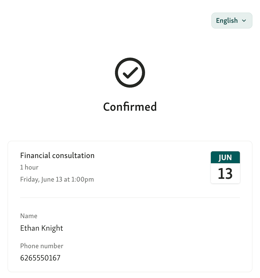
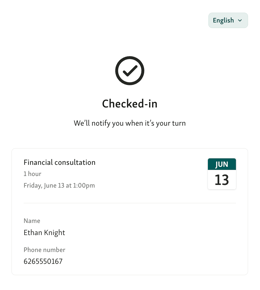
The same appointment confirmation page will reflect real-time changes, such as:
-
✅ Confirmed – shows the booking details
-
🕓 Checked-in – once the visitor has been checked in by staff or by themselves.
-
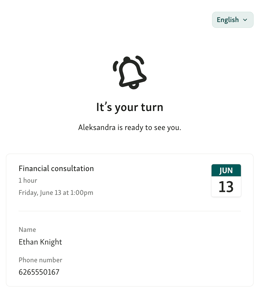
🔔 It’s your turn – once the team calls the visitor
-
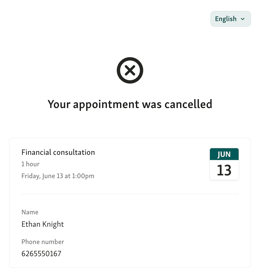
❌ Cancelled – if the appointment is cancelled
-
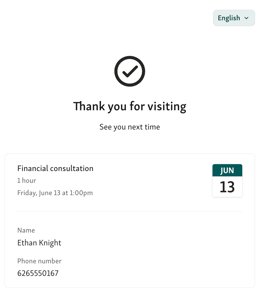
✔️ Completed – once the appointment is finished, visitors see a confirmation that their service has ended
What happens at check-in?
Visitors who book an appointment can be checked in:
- by themselves if configured in settings. See 📖 Self-check-in for Appointments to learn more about the flow, and Set up self check-in for Appointments
- by your staff when they arrive. 📖 Learn more how to check visitors in manually: Managing appointments in Calendar view
If they can't self-check in, you can still sign them in manually. The visitor can provide their name and appointment time at the front desk or reception.
Once checked in:
-
Their appointment turns into a live ticket in the Service view
-
They are automatically prioritized in the queue
Have questions or need help configuring it?
Reach out to our support team or your account manager - we’re happy to help.